Start with the goal.
Learn what to check before clicking links or opening attachments in an email.
Learning objectives
Check sender identity beyond the display name.
Recognize attachment and invoice warning signs.
Use direct login instead of email links when something feels suspicious.
Email can look official and still be fake
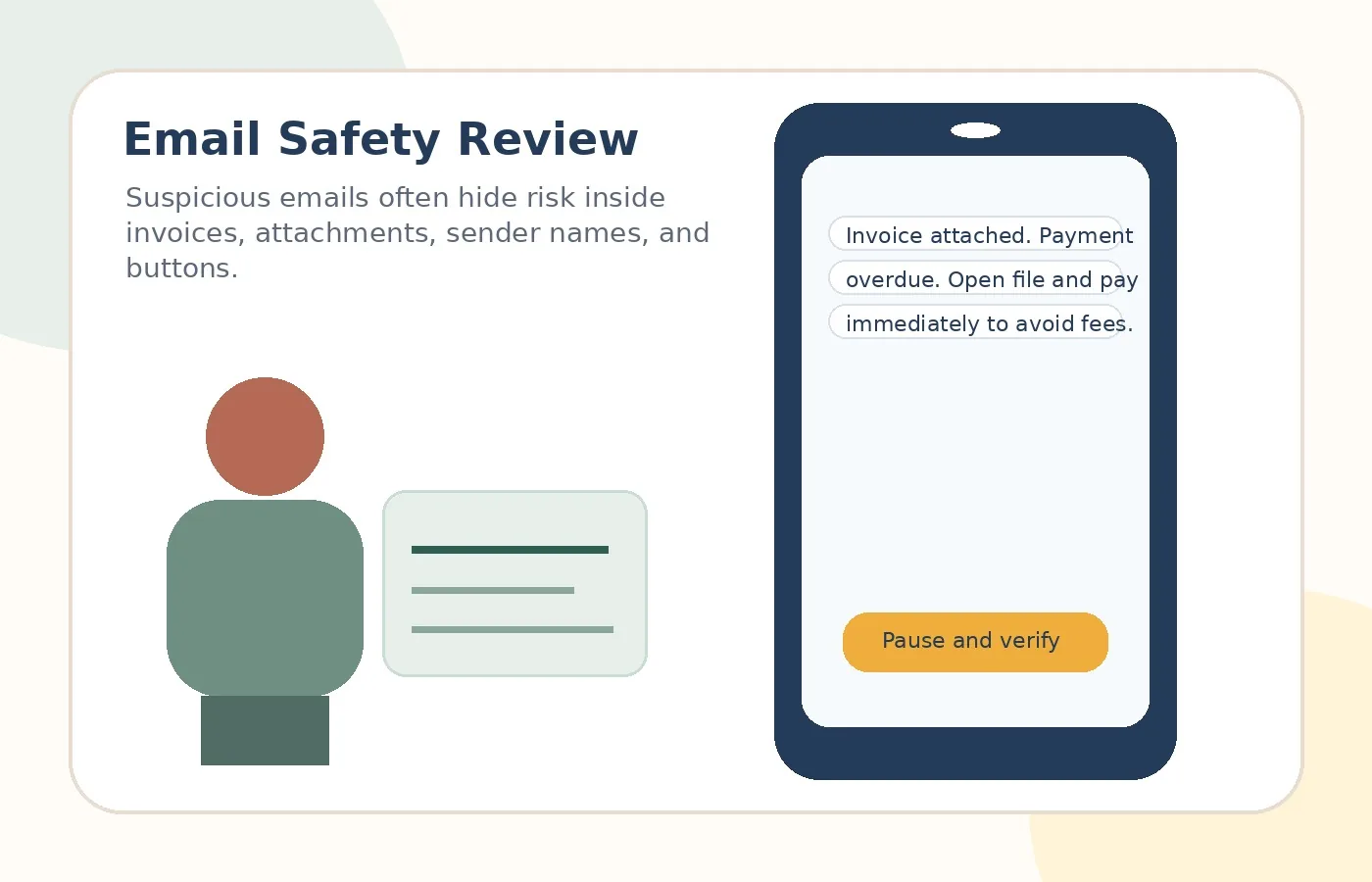
Scam emails may use logos, clean formatting, official-looking buttons, and familiar company names. The safer habit is to inspect the sender, avoid unexpected attachments, and verify by opening the official website or app directly.
Real-world examples
Fake invoice
Subject: Your invoice is attached
Safer move: Do not open unexpected attachments.
Mailbox warning
Subject: Your mailbox is full
Safer move: Open your email provider directly.
Subscription payment
Subject: Subscription renewal failed
Safer move: Open the app or official website directly.
Refund email
Subject: Refund approved
Safer move: Verify through the official account page.
Practice scenarios
Linda and the invoice
Linda receives an invoice from a company she does not recognize. She worries she forgot a bill.
Safer move: She does not open the attachment. She searches separately or asks a trusted person.
Harold and email storage
Harold receives a warning that his mailbox is full and he must sign in now.
Safer move: He opens his email provider directly instead of using the link.
Diane and the refund
Diane receives an unexpected refund email with a button.
Safer move: She does not click. She checks the official account or statement.
Risky vs. safer choice
Risky reaction
React inside the message because it feels urgent, official, or emotional.
Safer reaction
Pause, leave the message, and verify through an official app, website, statement, card, or known phone number.